
Collections
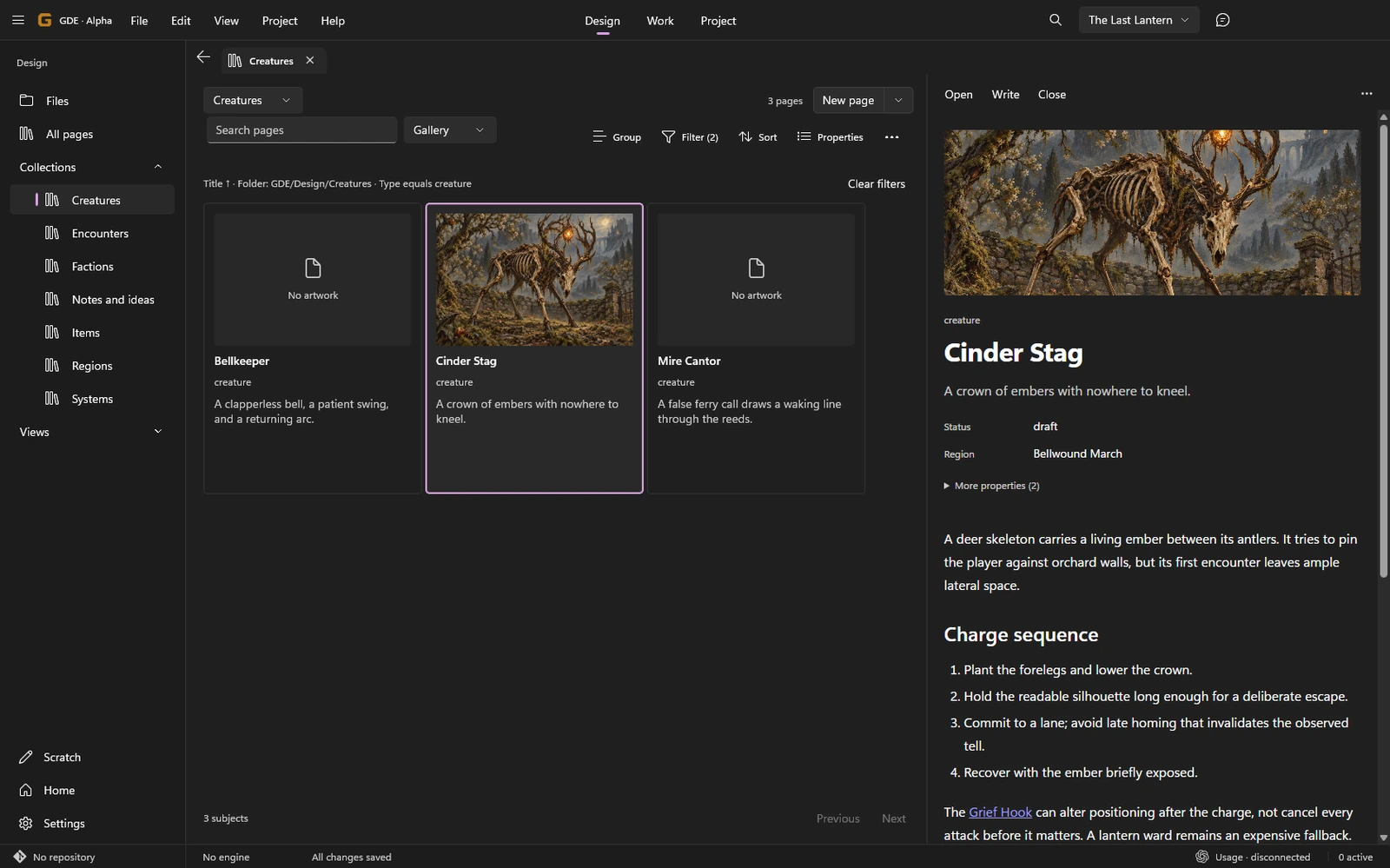
A collection gathers existing subjects so you can scan, compare and open them. It does not make a second set of pages.
Choose a presentation
Section titled “Choose a presentation”- List keeps titles and compact context easy to scan.
- Table compares properties across subjects.
- Gallery gives artwork and short descriptions more room.
Use Filter, Sort, Group and Properties to shape the view. A presentation change does not alter the subjects’ source files. Use Save view when the arrangement should become a reusable authored view.
Preview without leaving the collection
Section titled “Preview without leaving the collection”Select a subject to preview it beside the collection. Expand the preview to open the full page. Return with Back. The page and its preview share the same draft.
On narrow windows, preview takes the central workspace instead of squeezing the article into a small side panel.
Edit table properties
Section titled “Edit table properties”Double-click an editable property cell or press F2 to edit it. Commit a value before moving to the next subject. Enter advances to the next row for text and number fields; Tab and Shift+Tab move between editable fields. Escape cancels the current cell draft.
Heading-owned titles and paths are read-only cells. Open the page or use the appropriate file action to change them.
If saving a value reports a conflict, inspect the changed source before retrying. Repeated edits still belong to the original subject; creating another collection will not resolve a file conflict.
Use collections for design questions
Section titled “Use collections for design questions”Compare creature regions, quest states, item costs or unresolved mechanics. A rough note can stay visible without artwork or a complete property set.
Start with Build a design workspace. Use Outline, Relations and Timeline when the question is about hierarchy, connections or order rather than a set of comparable rows.